Templates are here: set up a signature document once, reuse it forever
Holosign Templates let you set up a document once, with its roles, fields, and merge data already in place, and reuse that setup for every send afterward. For documents with a consistent structure, such as service agreements or new-hire onboarding forms, you place the fields only during the first setup.
Templates and merge fields come with every Holosign plan. There’s no per-seat fee, and both free and paid accounts get the feature.
What Templates actually does
A template is a saved version of a document you send on a recurring basis. It stores three kinds of configuration:
- Roles are the signing participants, such as Customer or Account Manager. Each role gets its own color so its fields are easy to spot on the PDF.
- Fields are the interactive boxes a signer completes. Holosign offers four types: Signature, Text, Date, and Initials. Each field is assigned to a specific role.
- Merge fields are placeholders the sender fills in at send time. Each one holds a single value type: Text, Number, or Date. Numbers render with thousands separators, and dates render as Month D, YYYY.
How to create a template
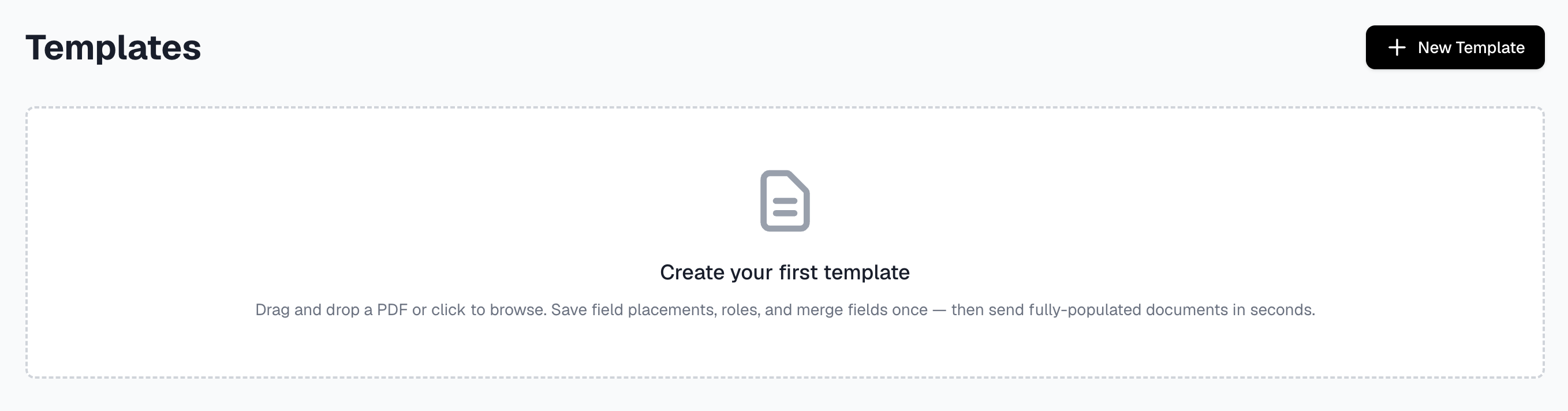
- Open Templates from the left sidebar. If your organization has no templates yet, a dropzone invites you to create the first one. Otherwise, use New Template at the top right to reach the upload page.
- Upload the PDF you want to reuse.
- Add a role for every person who signs. Name each one (Customer or Account Manager, for example), and Holosign gives it a color so its fields are easy to pick out on the page. Roles can be dragged into any order, and you need at least one before you can place role-specific fields.
- Select a role, then drag Signature, Text, Date, or Initials fields onto the PDF wherever that person needs to act. Clicking a placed field lets you set which role it belongs to, mark it as required, or remove it.
- Drag a merge field onto the page for data that fills in automatically at send time, such as a contract amount or client name. Give it a merge key like
client_nameand a type of Text, Number, or Date. If a HubSpot integration is connected, you can also map it to a CRM property. - Save the template. A confirmation shows it is stored and ready to send. On a team account, which comes with the Unlimited plan, that means ready for anyone in your organization to send.
How to send a document from a template
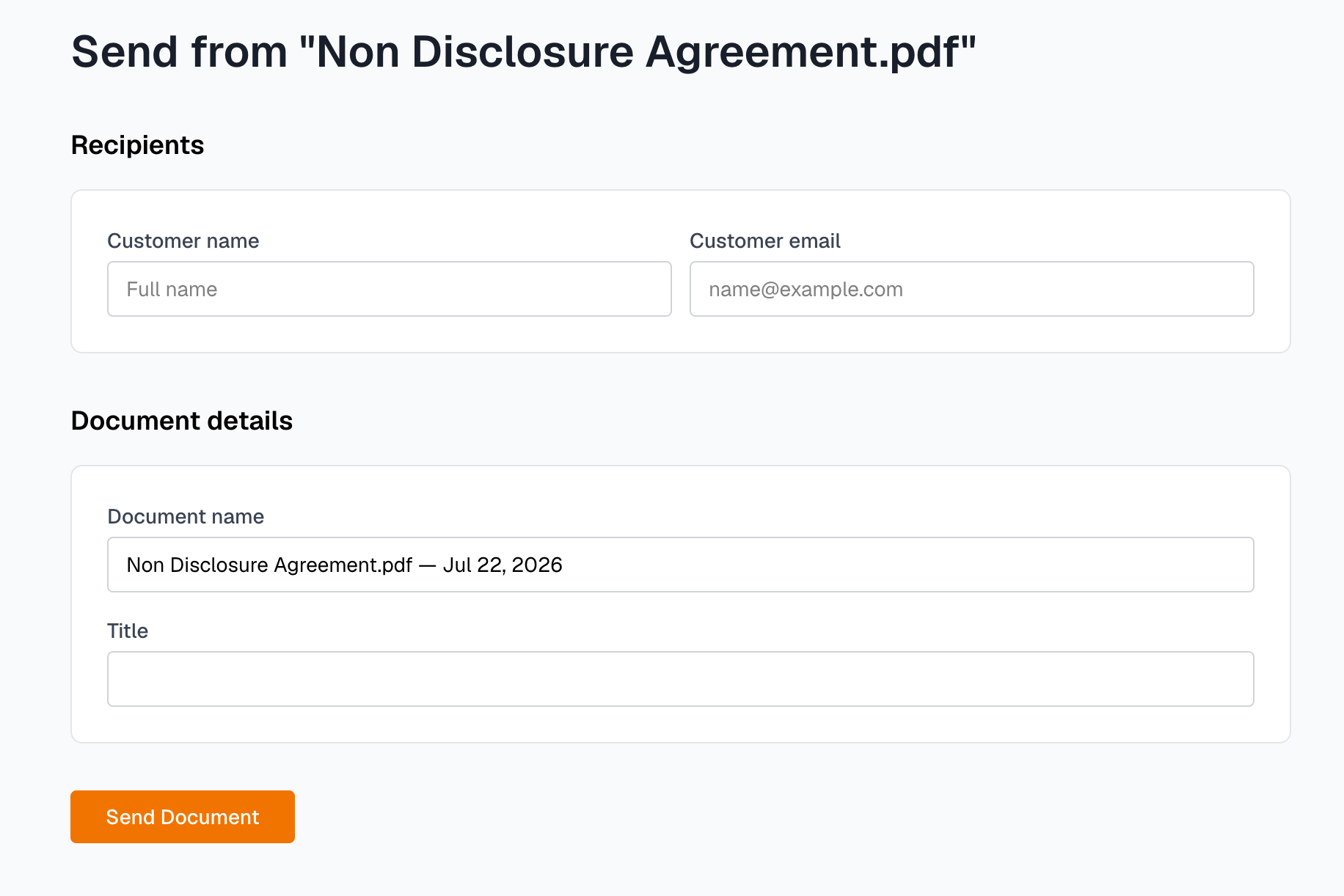
- On the Templates overview, click the template’s name to open its send page.
- Fill in a full name and email address for each role’s recipient.
- Complete the document details. Holosign pre-fills the document name from the template and the current date, and shows each merge field as a labeled input that matches its type. Optional fields are marked and can be left blank.
- Send the document. If a required field is still empty, Holosign points out what’s missing before the request goes out.
Each send produces a separate document. Holosign copies the template PDF, applies your merge values to that copy, and routes it through the normal signing flow. The saved template never changes, and a sent confirmation appears on the Documents page.
Good to know
- There’s no limit on how many templates, roles, or fields you can create.
- A template needs at least one role before it can be sent.
- Organization-wide sharing needs a team account, which is part of the Unlimited plan ($19/month); the Free plan has no team features. On a team account, anyone in your organization can open a template and send from it, while editing and deleting stay restricted to the template’s creator and to organization administrators, so the shared version stays consistent for everyone who uses it.
- Creating and editing templates is unmetered. Sending from one draws on your account’s monthly document allowance.
- If your account has a HubSpot integration, merge fields can pull their values straight from the associated CRM record at send time. The HubSpot integration post covers that flow.
Start with the document you send most
Pick a document you send again and again, set it up once, and every send afterward needs only the recipient details and that send’s merge values.